

An offline AI agent for your own computer
Offline SweetPilot reads, explains and organises the files you point it at, on your machine, with no internet connection and no account. For the work that cannot leave the building.
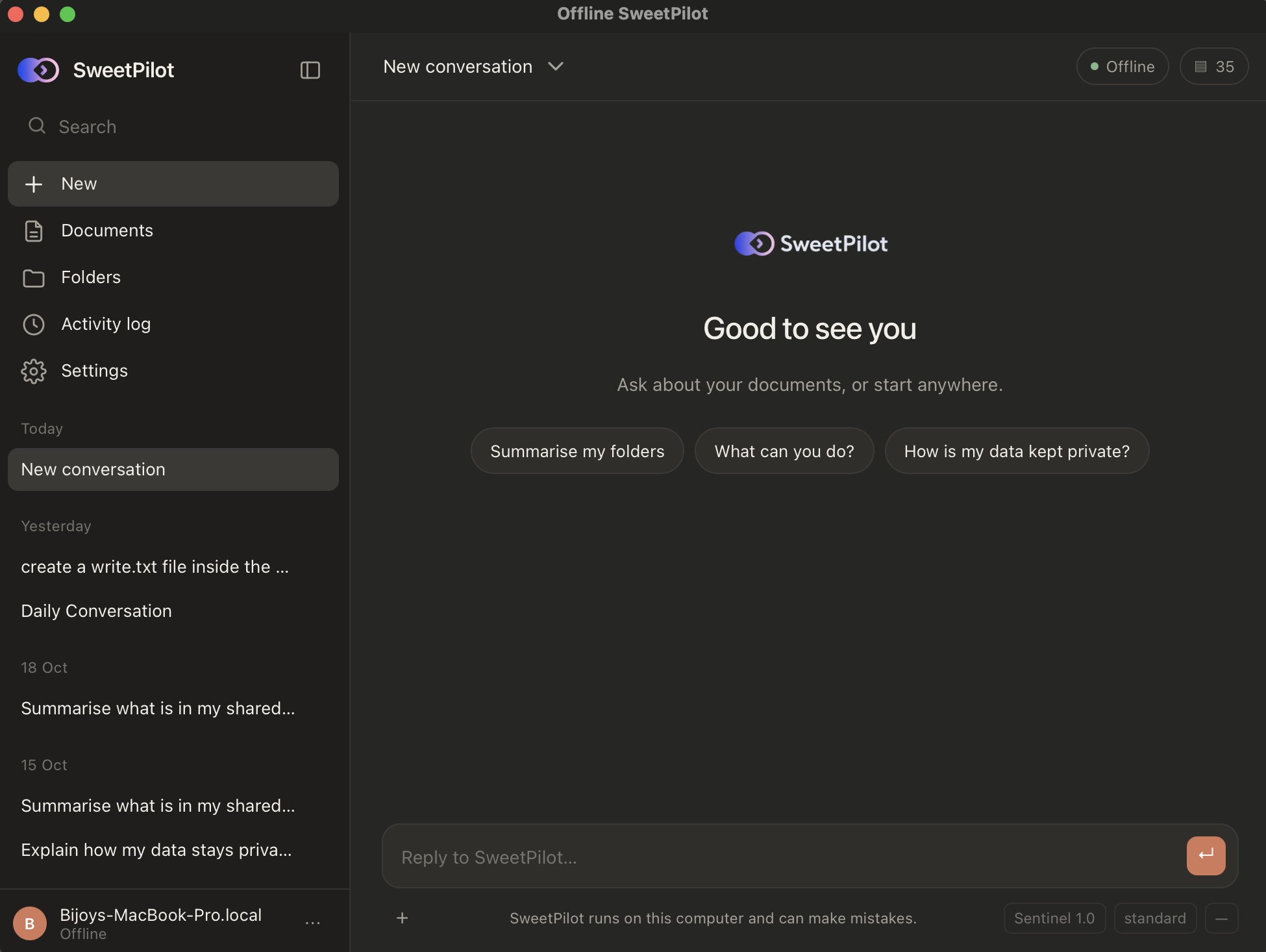
Why an offline AI agent
Plenty of teams cannot send a document to a server to have it read. A bank's credit file, a clinic's notes, a law firm's discovery bundle, a defence contractor's drawings: the rule is not that the data must be encrypted, it is that it must not leave. An assistant that needs the cloud is simply not allowed in the room.
No network calls
No telemetry, no usage reporting, no cloud processing, and no licence check over the wire. A packet capture shows nothing.
Only the folders you share
Access is an allowlist you choose in your own operating system picker, and you can withdraw a folder at any time.
Nothing changes without a card
Every write, rename, move and deletion is shown with its exact path and contents before it happens.
A record you can audit
Every read, action and refusal is written to a hash-chained log in the application folder, which never leaves your machine.
Runs on the processor alone
No graphics card needed. The model is chosen for the machine it finds, so an older laptop still gets a usable assistant.
A licence checked on your machine
The download carries a signed licence that is verified on your computer, never over the network. Today it is a 14-day trial, and Settings shows when it ends.
Setup guide
Five steps. Most of the time is the download.
- 1
Download the file
Use the download button on this page, or the download control in the header of the SweetPilot dashboard. The file carries the assistant and its model together, so it is large and needs no second download later.
- 2
Open it where you want it to live
Unzip the folder onto your computer or onto a USB drive, then open the app. This build is not yet signed by Apple, so macOS may say it cannot be opened: right-click (or Control-click) the app, choose Open, then Open again. You only need to do that once. The application, the model, your licence and your activity log stay together in that folder whenever it can be written to, and Settings always names the folder in use.
- 3
Accept the agreement
The first run shows a short data agreement in plain language. Read to the end and tick the box. Declining stops setup, and nothing is installed and no folder is read.
- 4
Choose the folders it may read
Pick the folders you want help with, using your own operating system picker. The assistant can read nothing outside them, and you can withdraw a folder at any time from Folders in the sidebar.
- 5
Start working
Ask it to find, read, explain, create, write, rename, move or delete files in those folders. Anything that changes a file is shown on a card with the exact path before it happens, and every action is written to the activity log.
What it does once it is set up
Everything below happens on your machine, inside the folders you shared.
Reading and finding
- Find a file by name, even misspelled
- Show a file exactly as it is, never a paraphrase
- Explain what a file or a piece of code does
- List what is in a folder
- Answer questions from the contents of your files
Changing things, after you confirm
- Create a folder or a file where you say
- Write or edit the contents of a text or source file
- Rename a file or folder
- Move something into another shared folder
- Move a file to the trash
What it needs
Frequently asked questions
About the offline AI agent, what it reaches, and what it records.
What is an offline AI agent?
An offline AI agent is an assistant that runs its model on your own computer instead of sending your work to a server. Offline SweetPilot reads and writes files in folders you choose, answers questions about them, and does it all with no internet connection and no account.
Does Offline SweetPilot ever connect to the internet?
No. It makes no network calls at all: no telemetry, no usage reporting, no cloud processing, and no licence check over the wire. The licence it carries is signed and verified on your machine. A packet capture of the application shows nothing, which is the point for customers who run one.
How is this different from the SweetPilot web app?
The web app runs in the cloud with your team, integrations and AI employees. Offline SweetPilot is a separate desktop product for work that cannot leave the building. It needs no SweetPilot account to run, and you can use both.
Which files can it read?
Text formats: plain text, source code, configuration, notes and similar. It reads only inside the folders you share, it records every read in the activity log, and it skips files it cannot read as text. PDF and Office documents are on the roadmap.
Can it change or delete my files?
Only after you press a button. Every creation, edit, rename, move and deletion appears first as a card naming the exact path and showing exactly what would be written. Deletions go to the trash rather than disappearing, and write access is granted for that one action and withdrawn immediately afterwards.
What hardware does it need?
A computer with at least 8 GB of memory and a few gigabytes of free disk space. It runs on the processor alone and needs no graphics card. On a four-core laptop it answers at roughly twelve to thirteen words a second.
How long can I use it?
For as long as its licence is in date. The download carries a signed 14-day trial licence, and Settings shows the plan and the date it ends. Licences that run for the length of a subscription, issued when you download, are not available yet. When a licence runs out the assistant stops answering and acting, and your files and your activity log are untouched.
Does it keep a record of what it did?
Yes. Every file read, every action taken and every refusal is written to an activity log stored in the application folder. The log is hash-chained, so alteration is detectable, and it never leaves your computer. You can export it for your own auditor.
Which platforms are supported?
macOS today. Windows and Linux builds follow the same design and are in progress.
Keep the work, and the files, on your own machine
The download includes a 14-day trial licence. Unzip it once and it runs wherever you take the folder.